Flash
Fresh designs.
Ready to be picked.
Give your flash a home clients can come back to. Show the design, sizes, and price estimates, then give them a way to enquire.
What is a flash gallery?
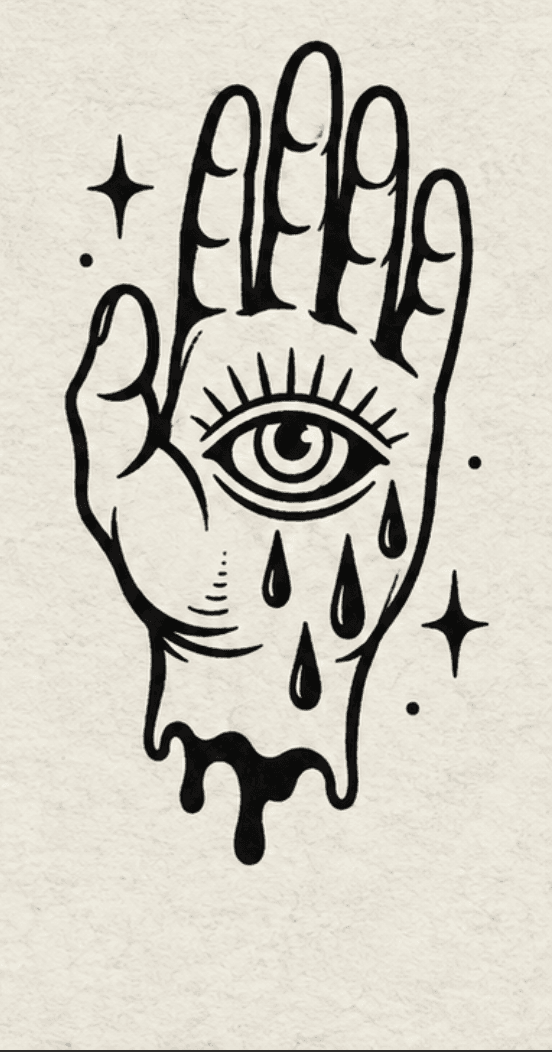
Flash is artwork you’ve already designed and want to tattoo. A gallery brings those designs together so clients can browse what’s available, instead of hunting through old posts.
Each design can have its own size options, estimates, and repeatability setting. You decide what to publish and which booking form to connect.
See how it fits together.
Add the artwork.
Upload a clear image and give the design a name.
Set the options.
Choose sizes, estimates, and whether you’ll tattoo it more than once.
Publish and connect.
Publish the design and add a gallery with a published booking form to your Link in Bio.
How to put your flash out there.
These are simplified app examples. Names, dates, amounts, and artwork are illustrative.
The artwork
Start with a design you want to tattoo.
Make the artwork easy to recognise before adding the booking details.
- Open More → Flash and use Add flash to create a design.
- Choose the artwork image. Give it a Name, then add a Description (optional) if the client needs more context.
- Use Save draft if you want to finish the options before publishing.
What clients see
A draft is for you to work on. Clients see the published version once it’s available through your public gallery.
Sizes & estimates
Give clients a useful starting point.
A size option pairs the design with a price estimate and estimated time.
- In the flash editor, open Sizes & estimates and add a size.
- Choose a size, enter the Price estimate, and set the Estimated time. Use a custom size if a preset doesn’t fit.
- Save the size. Add other options if the same design works at different sizes.
- Set Repeatable flash to match whether you’ll tattoo the design more than once.
What clients see
Published designs show their available sizes and estimates so clients can choose an option before enquiring.
Ready to share
Make the finished design public.
Check the artwork and options together before you publish.
- Reopen the draft and check the image, name, description, and size options.
- Check Repeatable flash once more, then use Publish flash.
- Check that the design shows Published. To show it on your page, connect the gallery in the next step.
What clients see
The published version is the version used by the public gallery.
The enquiry
Give the design a next step.
Connect your published artwork to a form that asks for the details you need.
- Open Link in Bio, choose Add element, and add a Flash gallery.
- Give the gallery a title and choose a published booking form. Publish the form first if it is still a draft.
- Save the gallery and publish your Link in Bio changes. Open the public page to check the result.
- Clients choose a design and size, then complete the linked form. Review the resulting request before arranging the tattoo.
What clients see
Clients can browse your published designs. A connected published form lets them submit a reservation request for an available option.
A reservation is the start of a booking.
A flash request records the chosen design and size. It does not take a payment or confirm an appointment.
Review the request, agree on the work and dates, and handle any deposit through the booking.
A few things you might be wondering.
- Is Flash for artists or studios?
- Flash management is an artist feature. Artists manage their own designs.
- What does repeatable mean?
- Repeatable designs can be requested by more than one client. A once-only design becomes reserved after a successful reservation submission.
- Does saving a draft publish it?
- No. Publish the design, add the gallery to your Link in Bio, and publish your page changes so clients can find it there.
- Does the price estimate take payment?
- No. The estimate helps a client understand the design’s likely price. A reservation is separate from deposits and appointment confirmation.
For feature access, see the current plans.
Make your next move.
Start with the feature you came for. Explore the others when you need them.